


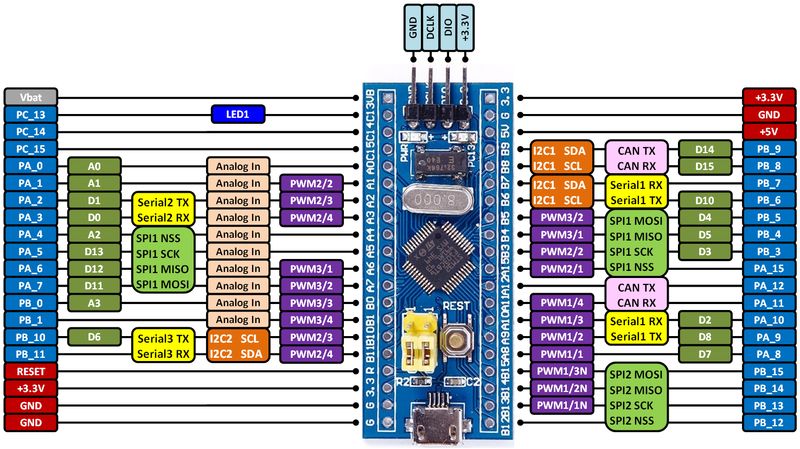
The Arduino Nano is one of the most widely used microcontrollers in the maker community. Its compact size, affordable price, and powerful features make it a go-to choice for beginners, students, and professionals working on electronics projects. While the hardware itself is straightforward to use, many newcomers often get confused about the Arduino Nano pinout—that is, what each pin does, how it should be connected, and the purpose it serves in a circuit.
In this guide, we’ll take a closer look at the Nano’s pin layout, explain the functions of each section, and provide practical tips to help you avoid mistakes when wiring your projects.
What Makes the Arduino Nano Special?
The Arduino Nano is essentially a smaller version of the Arduino Uno. Built around the ATmega328P microcontroller, it provides nearly the same functionality as the Uno but in a much smaller form factor. Measuring just 18 x 45 mm, it is designed for breadboard use, which makes it ideal for prototyping and compact projects.
Key highlights include:
- Microcontroller: ATmega328P
- Operating Voltage: 5V
- Input Voltage (recommended): 7–12V
- Digital I/O Pins: 14 (of which 6 can be used as PWM outputs)
- Analog Input Pins: 8
- Flash Memory: 32 KB (2 KB used by bootloader)
- SRAM: 2 KB
- EEPROM: 1 KB
- Clock Speed: 16 MHz
With this background, let’s move on to the detailed Arduino Nano pinout.
Understanding the Arduino Nano Pinout
The Nano has a total of 30 pins, each serving a specific function. These pins are divided into groups: power, analog, digital, and special function pins.
1. Power Pins
These pins are essential for powering the board and supplying voltage to external components.
- VIN (Pin 30): This is the input voltage pin. If you’re supplying power from an external source (like a battery or adapter), connect it here. The voltage should be between 7–12V.
- 5V (Pin 27): This pin provides regulated 5V output. You can use it to power sensors, modules, and other components.
- 3.3V (Pin 17): The board has an onboard voltage regulator that outputs 3.3V for low-voltage devices. The maximum current draw is about 50 mA.
- GND (Pins 4, 5, 18, 29): Ground pins. All circuits must have a common ground reference.
- RESET (Pin 28): This pin can be used to reset the Nano externally by pulling it low.
2. Digital Pins
The Nano features 14 digital input/output pins (D0–D13). These can be configured as either input or output using the pinMode() function in Arduino IDE.
- D0 (RX) and D1 (TX): Used for serial communication. They allow the Nano to communicate with your computer via USB or with other serial devices.
- D2–D7: General-purpose I/O pins.
- D3, D5, D6, D9, D10, D11: Support PWM (Pulse Width Modulation). PWM is useful for controlling motor speed, LED brightness, and other applications where analog control is required.
- D10–D13: Can also be used for SPI communication. Pin D13 is connected to the onboard LED.
3. Analog Pins
The Nano provides 8 analog input pins (A0–A7).
- A0–A7: These pins can read analog signals (voltage between 0–5V) and convert them into digital values using the built-in 10-bit ADC (Analog to Digital Converter). This makes them perfect for sensors such as temperature, light, or potentiometers.
- Note: A6 and A7 are analog-only pins, meaning they cannot be used for digital input/output.
4. Special Function Pins
Some pins on the Nano serve multiple purposes beyond simple input/output.
- PWM Pins: D3, D5, D6, D9, D10, D11
- External Interrupts: D2 and D3 can be configured as external interrupts, useful for detecting events like button presses.
- SPI Communication:
- D10 → SS (Slave Select)
- D11 → MOSI (Master Out Slave In)
- D12 → MISO (Master In Slave Out)
- D13 → SCK (Serial Clock)
- D10 → SS (Slave Select)
- I2C Communication:
- A4 → SDA (Data line)
- A5 → SCL (Clock line)
- A4 → SDA (Data line)
Arduino Nano Pinout Diagram
It’s always easier to understand the layout through a visual diagram. A standard Arduino Nano pinout diagram shows the placement and functionality of each pin on both sides of the board. While text explanations are important, keeping a printed diagram nearby is a lifesaver for beginners.
Practical Tips for Using Arduino Nano Pinout
- Avoid Overloading Pins: The maximum current a single I/O pin can handle is about 40 mA, but it’s safer to keep it below 20 mA to prevent damage.
- Use Common Ground: Always connect your external power source’s ground to the Nano’s ground. Otherwise, you’ll face unpredictable behavior.
- Double-Check Power Input: Supplying more than 12V through VIN may damage the onboard regulator.
- Use Pull-Down/Pull-Up Resistors: For stable digital inputs (like buttons), make sure to use resistors to prevent floating states.
- Leverage I2C and SPI: Instead of using too many digital pins for sensors and modules, consider using I2C or SPI, which allow multiple devices to communicate over fewer pins.
Common Mistakes with Arduino Nano Pinout
- Mixing Analog and Digital Pins: Beginners sometimes try to use A6 or A7 as digital pins. Remember, they are analog-only.
- Confusing VIN and 5V: Supplying power directly to the 5V pin from an external adapter is risky. Always use VIN for external voltage sources.
- Ignoring Current Limits: Drawing too much current from the 3.3V pin can damage the regulator.
- Wrong Serial Connections: If you’re using D0 and D1 for sensors or communication while uploading code, it will cause errors because these pins are used by the USB serial connection.
Applications of Arduino Nano
Because of its compact size and flexible pinout, the Nano is perfect for projects such as:
- Wearable electronics
- DIY drones and robotics
- Portable weather stations
- Home automation systems
- Small-scale IoT devices
- Educational tools and experiments
Its small footprint makes it especially useful where space is limited but functionality cannot be compromised.
Conclusion
The Arduino Nano pinout is the key to unlocking the full potential of this tiny yet powerful board. By understanding the function of each pin—whether it’s power, digital I/O, analog input, or special communication—you can design circuits that are both reliable and efficient. Beginners may find the pin layout overwhelming at first, but with a little practice, it becomes second nature.
Whether you’re building a simple LED project or a complex IoT device, mastering the pinout is the foundation for success. Keep a diagram handy, double-check your wiring, and experiment step by step. The more you work with the Nano, the more comfortable you’ll become with its pin layout and capabilities.
